Il ripping alternativo(DVD Ripper,Copy,FairMount)
-
Votantonio
- Oracolo di Mac Peer
- Posts: 4094
- Joined: Tue May 13, 2008 3:30 am
Spero che questo sia il posto giusto.
Volevo segnalare agli iscritti che per le prossime quattordici ore il programma Mac DVDRipper Pro sarà in offerta al MacUpdate Promo al prezzo di $5.95, grazie allo sconto del 40%.
Volevo segnalare agli iscritti che per le prossime quattordici ore il programma Mac DVDRipper Pro sarà in offerta al MacUpdate Promo al prezzo di $5.95, grazie allo sconto del 40%.

Aggiornamento:flashcream wrote:
FAIRMOUNT
http://www.metakine.com/products/fairmount/
è una piccolla applicazione freeware contenuta nel pacchetto DVDRemaster dello stesso sviluppatore. è necessario avere installato VLC
(il noto lettore di filmati http://www.tuttologia.com/divx-xvid-mpeg-mac.html)
si inserisce il dvd, si apre l'applicazione. (o viceversa)
il dvd inserito su scrivania viene smontato e appare l'immagine disco del dvd stesso. dall' immagine montata su scrivania è ora possibile trascinare la cartella video_ts e audio_ts sul nostro HD. cartelle ormai "sprotette" e che possono essere masterizzate col finder o con il programma preferito, ottenendo la copia del proprio DVD, sempre ad uso personale. la fase di copia su HD sarà più lenta di un normale trasferimento file da supporto a disco fisso, proprio perchè in background c'è la fase di ripping.
nb: il programma non comprime (mentre dvd ripper si e secondo necessità), questo semplicemente "sprotegge"; per cui una cartella video più grande di 4,4GB non può essere masterizzata su dischi a singolo strato. per comprimere si usi toast 7 o 8, dvd2oneX, popcorn o movigate.
(vedi tutorials).
:flash:
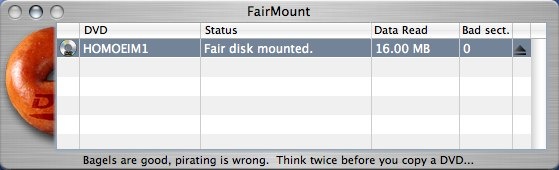
FairMount - 1.0.5
What's new in this version:
Features a 64-bit version for Mac OS X 10.6.
Operating System Requirements:
This product is designed to run on the following operating systems:
Mac OS X 10.5 Intel
Mac OS X 10.5 PPC
Mac OS X 10.4 Intel
Mac OS X 10.4 PPC
-
Votantonio
- Oracolo di Mac Peer
- Posts: 4094
- Joined: Tue May 13, 2008 3:30 am
Grazie! E speriamo che adesso ricominci a funzionare...avrobay wrote:Aggiornamento:
FairMount - 1.0.5
What's new in this version:
Features a 64-bit version for Mac OS X 10.6.
Operating System Requirements:
This product is designed to run on the following operating systems:
Mac OS X 10.5 Intel
Mac OS X 10.5 PPC
Mac OS X 10.4 Intel
Mac OS X 10.4 PPC


-
hathaway817
How to enjoy HD Video on your iPod in easy steps(For Windows/Mac)
How to enjoy HD Video on your iPod in easy steps(For Windows/Mac)
Dreaming at enjoying HD video on your iPod?
Now this article writen by Top Seven Reviews(Top Seven Rveiws is a group of software fans, enjoy using and testing many software products. There are huge amount of shareware. The mission of Top Seven Rviews is to provide unbiased reviews and comparisons of seven makes or brands of a given product to provide customers with sufficient information to determine what is the best make, brand or model of that product for them.) is exactly designed for iPod users, which will show the easy steps to enjoy HD video on your iPod.
For Windows users:
How to enjoy HD Video on your iPod
What you need is Tipard iPod Video Converter
Preparation: Download Tipard iPod Video Converter, install and run it.
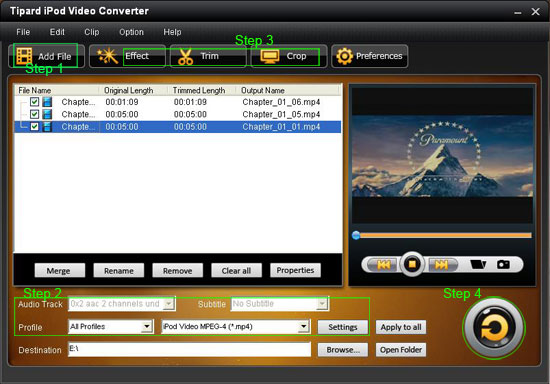
Step 1: Click "Add File" to import your video or audio files
Step 2: Select output format.
After you select the files you want to convert, you can select the output format from "Profile" drop-down list.
You can also click "setteing" button to adjust the settings of your output video, such as "video/audio encoder", "Video/audio Bitrate", "Channels", "Resolution" and so on..
Step 3: Video Editing
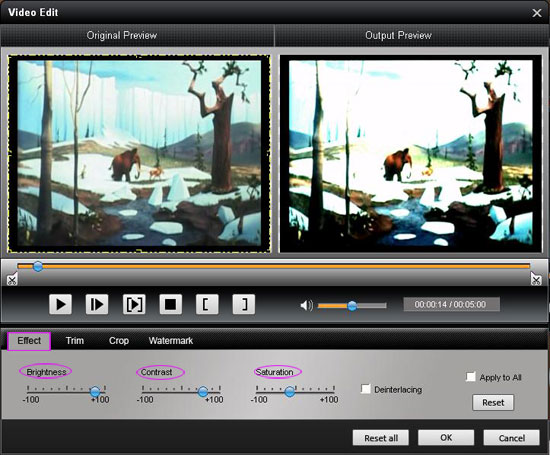
Effect
Click the "Effect" button and a dialog pops up, you can set your video effect here.
You can set the Brightness, Contrast and Saturation by dragging the adjustment bar.
Trim
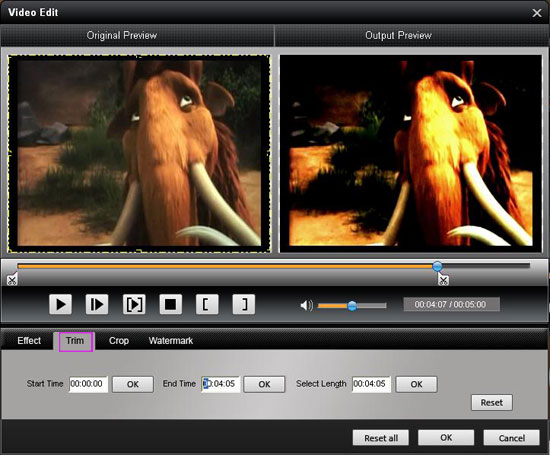
If you just want to convert a clip of your video, then you can click the "Trim" button and a dialog pops up, you can set the Start time and End time.
Crop
Click "Crop" button, then you can crop your video by setting crop values.
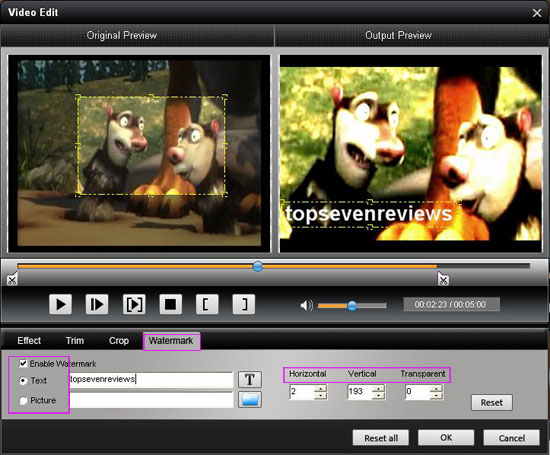
Add Watermark
Click "Watermark" button to add txt/picture watermark to your video, and adjust the watermark by setting the horizontal, vertical and Transparent parameters.
Step 4: Click "Convert" button to start your conversion
Just wait a moment, then the conversion will be finished.
For Mac users:
How to enjoy video on iPod on Mac OS X with Tiparad iPod Video Converter for Mac
Preparation: Download and install Tipard iPod Video Converter for Mac(Intel Version or Power PC Version )
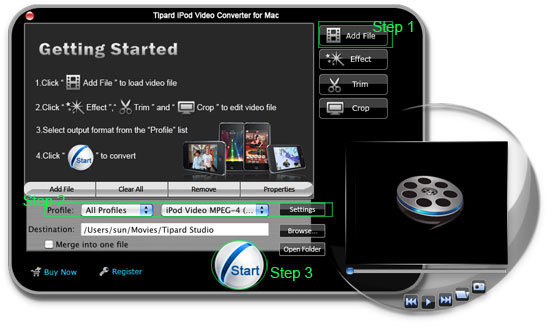
Step 1: Click "Add File" to import your video or audio files
Step 2: Select output format video format you want from the "Profile" drop-down list.
Step 3: Click "Convert" button to start your conversion
Just wait a moment, then the conversion will be finished.
Video Editing functions
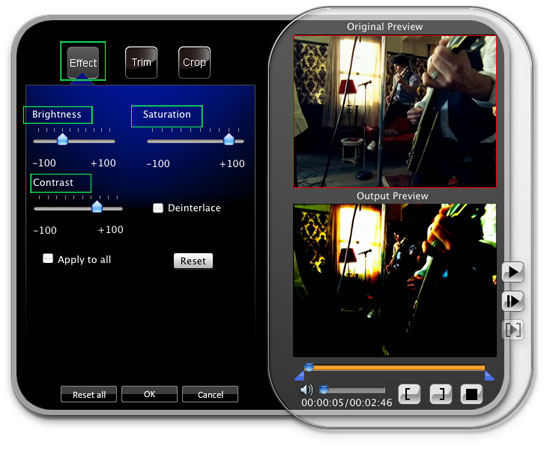
1. Effect
Click "Effect" button you can do these actions: adjusting brightness, contrast and saturation of the video. You can easily adjust the video through two windows in the same interface.
2. Trim
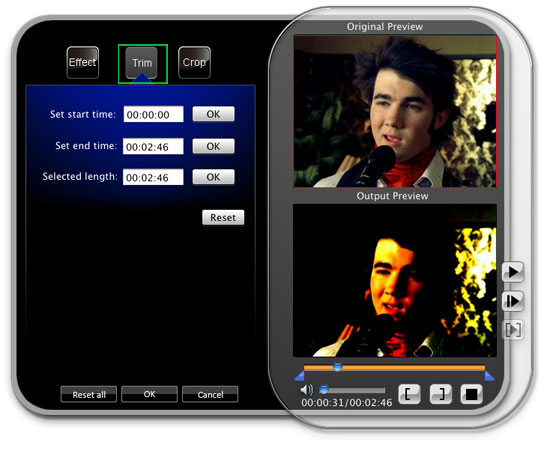
If you just want convert a clip of your video, then you can use the "Trim" icon to set the Start time and End time of the clip or you can directly drag the slide bar to the accurate position.
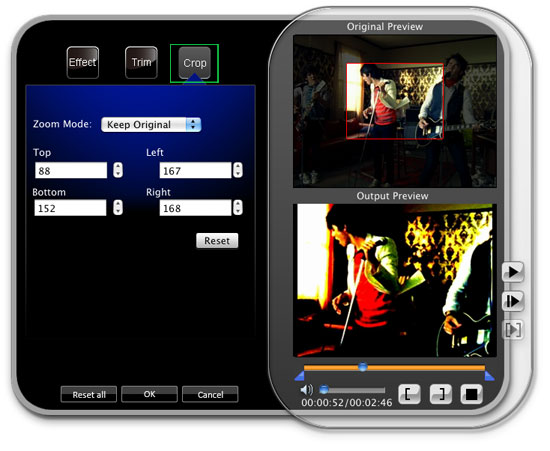
3. Crop
By using the "Crop" function you can crop the black edge of your video and you can also drag the line around the video image to adjust your video.
Ok, now no matter you are Windows or Mac users, enjoy HD video on your iPod is not a dream anymore, no waiting, have a try now!
Mac Video Converter
iPhone Ringtone Maker
MTS Converter
Blu Ray Ripper
Dreaming at enjoying HD video on your iPod?
Now this article writen by Top Seven Reviews(Top Seven Rveiws is a group of software fans, enjoy using and testing many software products. There are huge amount of shareware. The mission of Top Seven Rviews is to provide unbiased reviews and comparisons of seven makes or brands of a given product to provide customers with sufficient information to determine what is the best make, brand or model of that product for them.) is exactly designed for iPod users, which will show the easy steps to enjoy HD video on your iPod.
For Windows users:
How to enjoy HD Video on your iPod
What you need is Tipard iPod Video Converter
Preparation: Download Tipard iPod Video Converter, install and run it.
Step 1: Click "Add File" to import your video or audio files
Step 2: Select output format.
After you select the files you want to convert, you can select the output format from "Profile" drop-down list.
You can also click "setteing" button to adjust the settings of your output video, such as "video/audio encoder", "Video/audio Bitrate", "Channels", "Resolution" and so on..
Step 3: Video Editing
Effect
Click the "Effect" button and a dialog pops up, you can set your video effect here.
You can set the Brightness, Contrast and Saturation by dragging the adjustment bar.
Trim
If you just want to convert a clip of your video, then you can click the "Trim" button and a dialog pops up, you can set the Start time and End time.
Crop
Click "Crop" button, then you can crop your video by setting crop values.
Add Watermark
Click "Watermark" button to add txt/picture watermark to your video, and adjust the watermark by setting the horizontal, vertical and Transparent parameters.
Step 4: Click "Convert" button to start your conversion
Just wait a moment, then the conversion will be finished.
For Mac users:
How to enjoy video on iPod on Mac OS X with Tiparad iPod Video Converter for Mac
Preparation: Download and install Tipard iPod Video Converter for Mac(Intel Version or Power PC Version )
Step 1: Click "Add File" to import your video or audio files
Step 2: Select output format video format you want from the "Profile" drop-down list.
Step 3: Click "Convert" button to start your conversion
Just wait a moment, then the conversion will be finished.
Video Editing functions
1. Effect
Click "Effect" button you can do these actions: adjusting brightness, contrast and saturation of the video. You can easily adjust the video through two windows in the same interface.
2. Trim
If you just want convert a clip of your video, then you can use the "Trim" icon to set the Start time and End time of the clip or you can directly drag the slide bar to the accurate position.
3. Crop
By using the "Crop" function you can crop the black edge of your video and you can also drag the line around the video image to adjust your video.
Ok, now no matter you are Windows or Mac users, enjoy HD video on your iPod is not a dream anymore, no waiting, have a try now!
Mac Video Converter
iPhone Ringtone Maker
MTS Converter
Blu Ray Ripper
-
hathaway817
How to enjoy HD Video on your iPod in easy steps(For Windows/Mac)
How to enjoy HD Video on your iPod in easy steps(For Windows/Mac)
Dreaming at enjoying HD video on your iPod?
Now this article writen by Top Seven Reviews(Top Seven Rveiws is a group of software fans, enjoy using and testing many software products. There are huge amount of shareware. The mission of Top Seven Rviews is to provide unbiased reviews and comparisons of seven makes or brands of a given product to provide customers with sufficient information to determine what is the best make, brand or model of that product for them.) is exactly designed for iPod users, which will show the easy steps to enjoy HD video on your iPod.
For Windows users:
How to enjoy HD Video on your iPod
What you need is Tipard iPod Video Converter
Preparation: Download Tipard iPod Video Converter, install and run it.
Step 1: Click "Add File" to import your video or audio files
Step 2: Select output format.
After you select the files you want to convert, you can select the output format from "Profile" drop-down list.
You can also click "setteing" button to adjust the settings of your output video, such as "video/audio encoder", "Video/audio Bitrate", "Channels", "Resolution" and so on..
Step 3: Video Editing
Effect
Click the "Effect" button and a dialog pops up, you can set your video effect here.
You can set the Brightness, Contrast and Saturation by dragging the adjustment bar.
Trim
If you just want to convert a clip of your video, then you can click the "Trim" button and a dialog pops up, you can set the Start time and End time.
Crop
Click "Crop" button, then you can crop your video by setting crop values.
Add Watermark
Click "Watermark" button to add txt/picture watermark to your video, and adjust the watermark by setting the horizontal, vertical and Transparent parameters.
Step 4: Click "Convert" button to start your conversion
Just wait a moment, then the conversion will be finished.
For Mac users:
How to enjoy video on iPod on Mac OS X with Tiparad iPod Video Converter for Mac
Preparation: Download and install Tipard iPod Video Converter for Mac(Intel Version or Power PC Version )
Step 1: Click "Add File" to import your video or audio files
Step 2: Select output format video format you want from the "Profile" drop-down list.
Step 3: Click "Convert" button to start your conversion
Just wait a moment, then the conversion will be finished.
Video Editing functions
1. Effect
Click "Effect" button you can do these actions: adjusting brightness, contrast and saturation of the video. You can easily adjust the video through two windows in the same interface.
2. Trim
If you just want convert a clip of your video, then you can use the "Trim" icon to set the Start time and End time of the clip or you can directly drag the slide bar to the accurate position.
3. Crop
By using the "Crop" function you can crop the black edge of your video and you can also drag the line around the video image to adjust your video.
Ok, now no matter you are Windows or Mac users, enjoy HD video on your iPod is not a dream anymore, no waiting, have a try now!
Mac Video Converter
iPhone Ringtone Maker
MTS Converter
Blu Ray Ripper
Dreaming at enjoying HD video on your iPod?
Now this article writen by Top Seven Reviews(Top Seven Rveiws is a group of software fans, enjoy using and testing many software products. There are huge amount of shareware. The mission of Top Seven Rviews is to provide unbiased reviews and comparisons of seven makes or brands of a given product to provide customers with sufficient information to determine what is the best make, brand or model of that product for them.) is exactly designed for iPod users, which will show the easy steps to enjoy HD video on your iPod.
For Windows users:
How to enjoy HD Video on your iPod
What you need is Tipard iPod Video Converter
Preparation: Download Tipard iPod Video Converter, install and run it.
Step 1: Click "Add File" to import your video or audio files
Step 2: Select output format.
After you select the files you want to convert, you can select the output format from "Profile" drop-down list.
You can also click "setteing" button to adjust the settings of your output video, such as "video/audio encoder", "Video/audio Bitrate", "Channels", "Resolution" and so on..
Step 3: Video Editing
Effect
Click the "Effect" button and a dialog pops up, you can set your video effect here.
You can set the Brightness, Contrast and Saturation by dragging the adjustment bar.
Trim
If you just want to convert a clip of your video, then you can click the "Trim" button and a dialog pops up, you can set the Start time and End time.
Crop
Click "Crop" button, then you can crop your video by setting crop values.
Add Watermark
Click "Watermark" button to add txt/picture watermark to your video, and adjust the watermark by setting the horizontal, vertical and Transparent parameters.
Step 4: Click "Convert" button to start your conversion
Just wait a moment, then the conversion will be finished.
For Mac users:
How to enjoy video on iPod on Mac OS X with Tiparad iPod Video Converter for Mac
Preparation: Download and install Tipard iPod Video Converter for Mac(Intel Version or Power PC Version )
Step 1: Click "Add File" to import your video or audio files
Step 2: Select output format video format you want from the "Profile" drop-down list.
Step 3: Click "Convert" button to start your conversion
Just wait a moment, then the conversion will be finished.
Video Editing functions
1. Effect
Click "Effect" button you can do these actions: adjusting brightness, contrast and saturation of the video. You can easily adjust the video through two windows in the same interface.
2. Trim
If you just want convert a clip of your video, then you can use the "Trim" icon to set the Start time and End time of the clip or you can directly drag the slide bar to the accurate position.
3. Crop
By using the "Crop" function you can crop the black edge of your video and you can also drag the line around the video image to adjust your video.
Ok, now no matter you are Windows or Mac users, enjoy HD video on your iPod is not a dream anymore, no waiting, have a try now!
Mac Video Converter
iPhone Ringtone Maker
MTS Converter
Blu Ray Ripper